PNG, JPG and other image files
Smartcat translates PNG, JPG, JPEG, JFIF, BMP, TIFF, GIF, PCX, DCX, JP2 and JPC files and returns each one in the format you uploaded.
Translated
PNGJPG / JPEGTIFFBMPGIFJP2
Export to PNG or JPG first
WebPSVGHEIC
More than 80 of the world’s largest companies have chosen Smartcat
An image translator is software that finds the text inside an image, translates it and writes the translation back into the same image in place of the original. You get a translated image you can publish, not a list of words to paste into a design tool. It is also called an image text translator.
To translate an image in Smartcat, upload the file and choose your languages. Optical character recognition (OCR) detects each text region, from headlines and labels to captions and text inside diagrams. Smartcat’s AI image translator then translates every region with your glossary and translation memory.
Smartcat removes the original text from the background and sets the translation in its place as editable text. Each image downloads in its original format, once per language, at a flat 1,000 Smartwords per image.
280+
languages
Translate into 280+ languages, including right-to-left and non-Latin scripts.
30 MB
per image
Upload images of up to 30 MB each; larger files can fail text recognition.
1,000
Smartwords per image
Each image uses a flat 1,000 Smartwords per target language, whatever the amount of text.
Text in an image can’t be selected or copied. So most teams retype it, translate it somewhere else and rebuild the graphic by hand, once for every language. Smartcat reads, translates and replaces the text in one project.
Words in a JPG can’t be copied, so someone types them out and mistypes a few.
Smartcat reads headlines, labels and captions straight from the image.
The text goes into a translator or a chat tool, once for each target language.
Choose all your target languages once; each image comes back in each of them.
A designer pastes each translation into the source file and fixes whatever overflows.
Translated text sits where the original was, in text boxes you can move and restyle.
The same product name comes back three different ways across one catalog.
Your glossary and translation memory keep names and repeated phrases identical.
Choose an image translator by what you need back. To read one image right now, a free app is enough. To publish translated images, you need the image files back in several languages, with your terminology and a reviewer: that is what Smartcat does. The table compares it with the free consumer versions of Google Translate and ChatGPT.
| Smartcat | Google Translate (free) | ChatGPT (free) | |
|---|---|---|---|
| What you get back | The image file in its original format, one per language, with text you can still edit | A translated copy of the image to view or download, one image and one language at a time | Translated text in the chat; a new image only if you ask it to generate one |
| Several images at once | One or many images in one project, every target language chosen once | One image at a time | A few images per message, answered in the chat |
| Terminology | Glossary and translation memory applied to every image | No glossary in the free app | Terms you list in the prompt, applied case by case |
| Editing the result | Reword, move and restyle each text box (56 fonts); hide logos | No editing of the translated image | Ask for changes in the chat |
| Human review | Your reviewers or Smartcat Marketplace linguists, in the same workspace | None | None built in |
| Best for | Images you publish: marketing assets, screenshots, product images | Understanding one image quickly | Explaining or drafting the text of one image |
Compared on the free consumer versions. Other tools change often, so check the current version before you decide.
To translate image text in Smartcat, upload the image to a project, choose your target languages and let Smartcat detect and translate the text. Then open the Image Translation Editor, adjust any text box and download each image in its original format. One image or a whole folder takes the same six steps.
To translate an image, choose your source and target languages, then select one or many PNG, JPG, TIFF, BMP or GIF files.
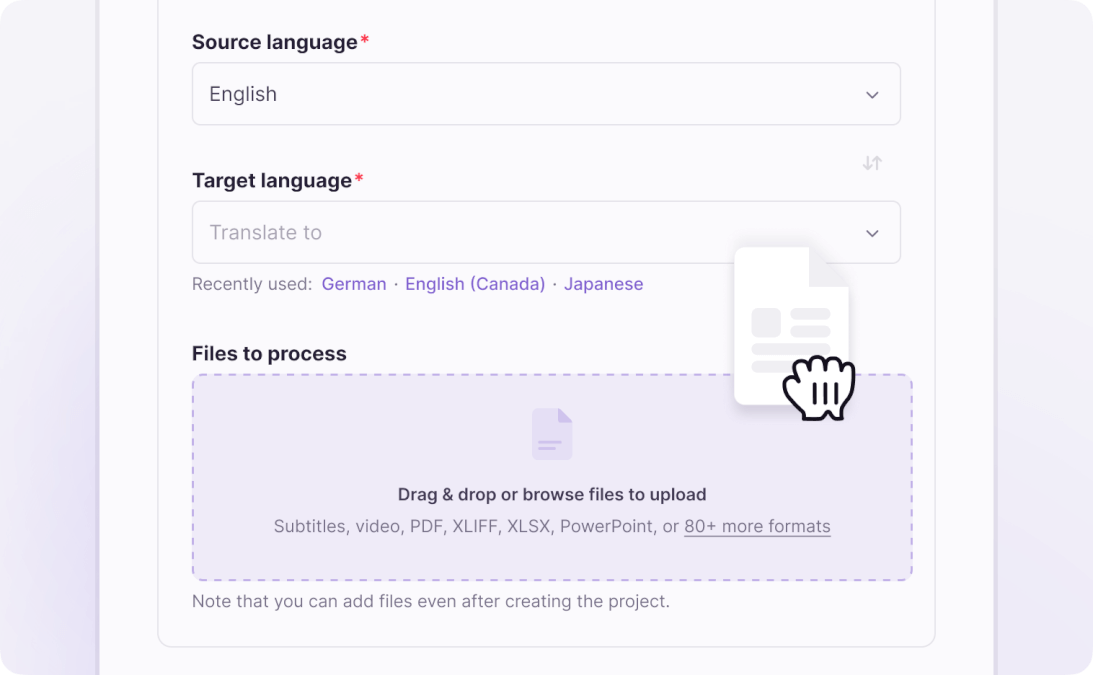
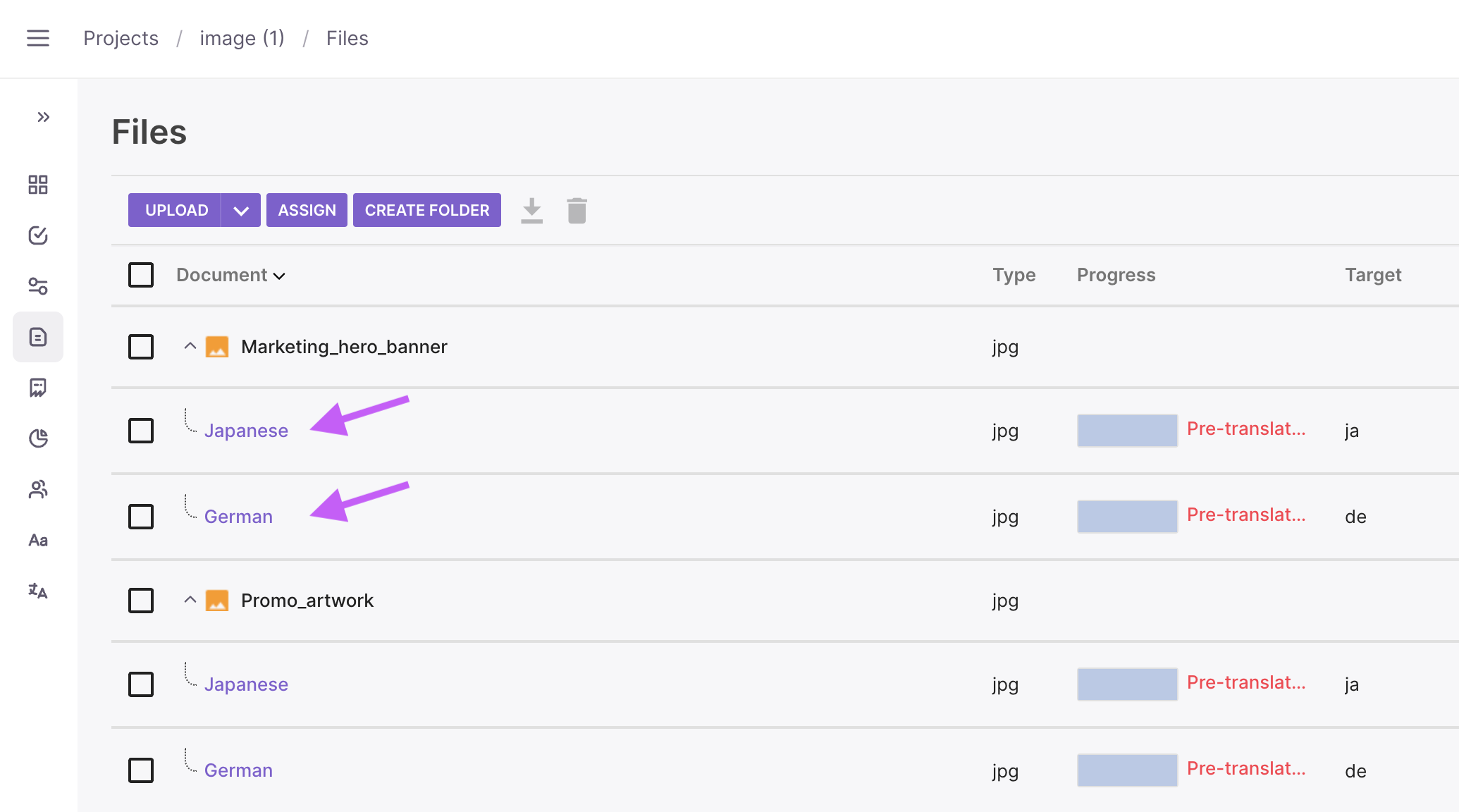
Smartcat extracts the text, removes it from the background and adds the AI translation. To translate by hand instead, switch auto-translation off.
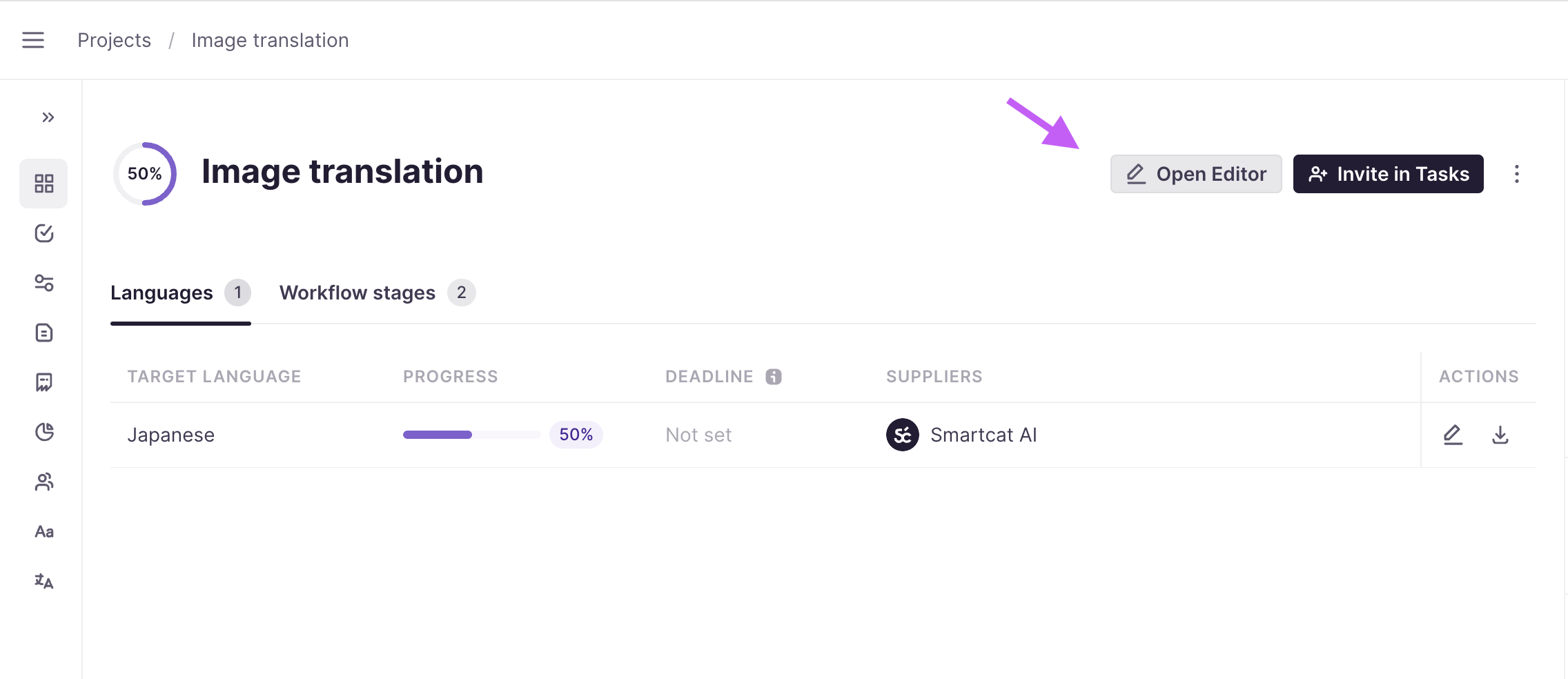
Click Open Editor. The translated image sits above its text segments, so reviewers check every line in context.
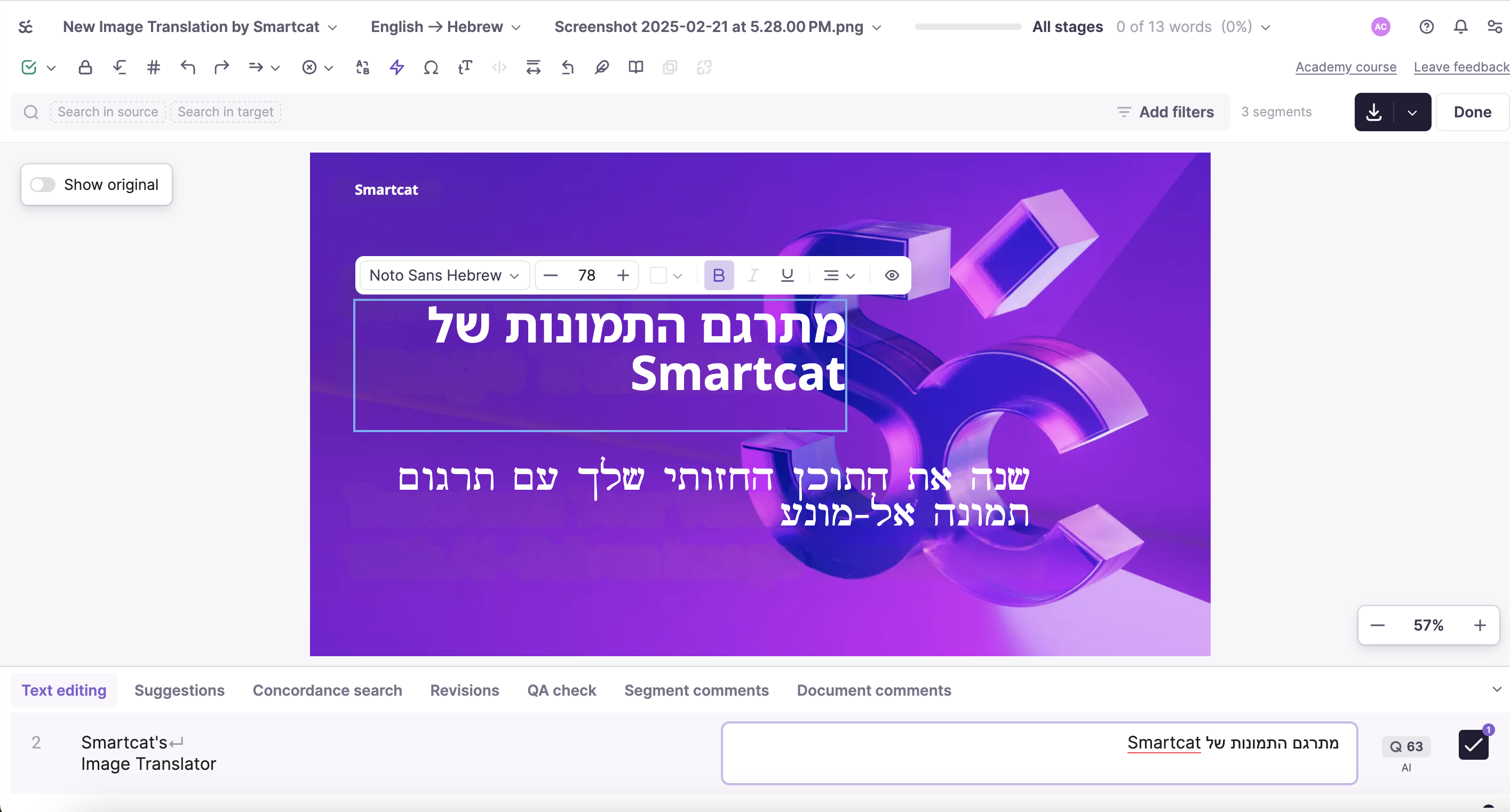
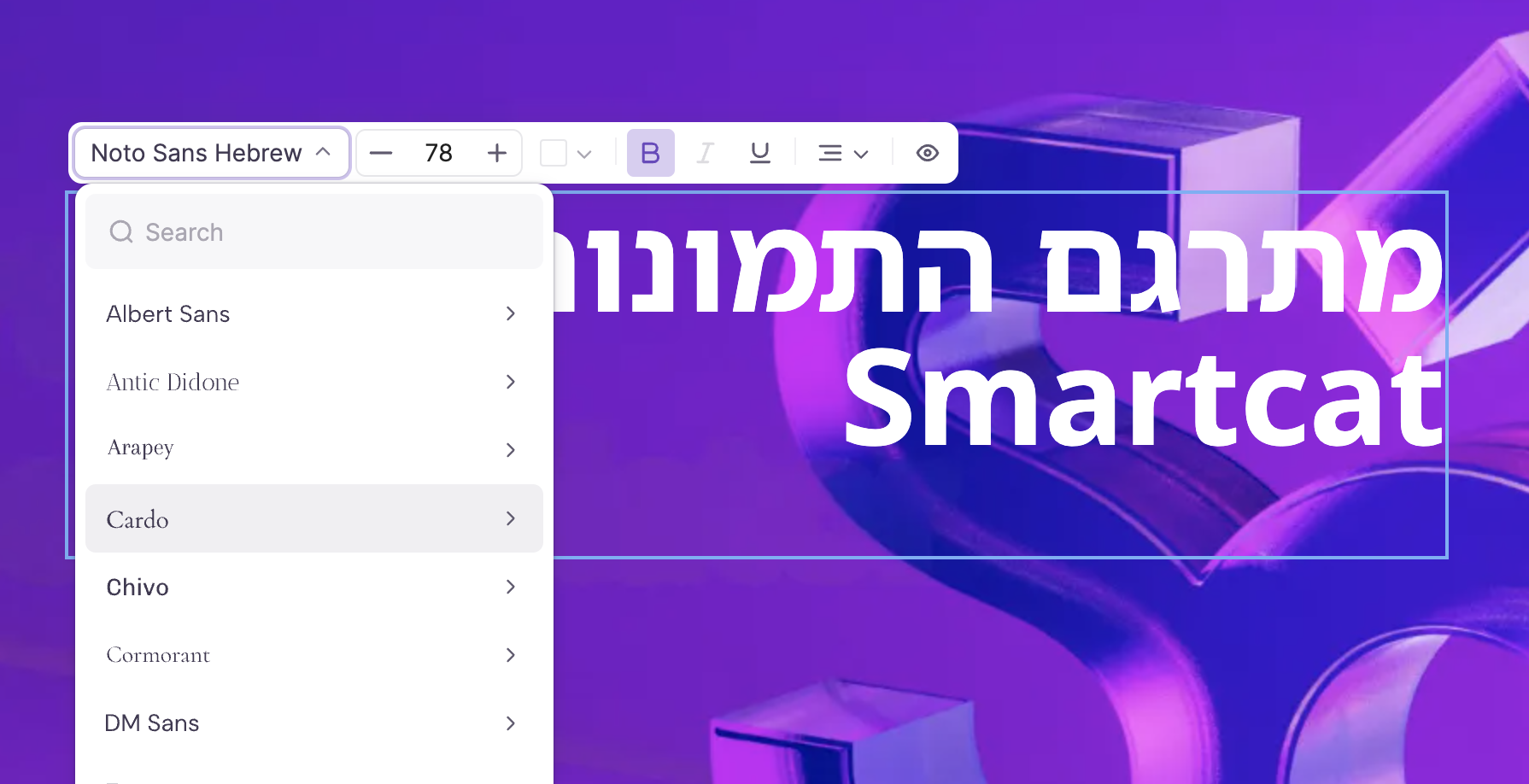
Select a text box to change its font, size, colour or alignment, or drag it into place. The editor offers 56 fonts, including Noto families for non-Latin scripts.
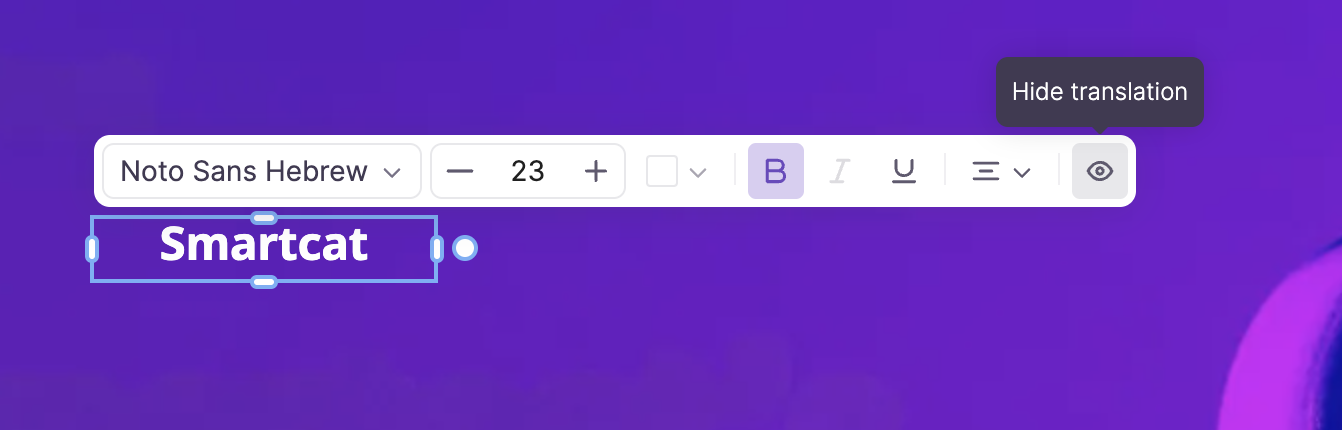
Select text you want to leave as it is, such as a logo, and click Hide. The translation goes and the original background stays.
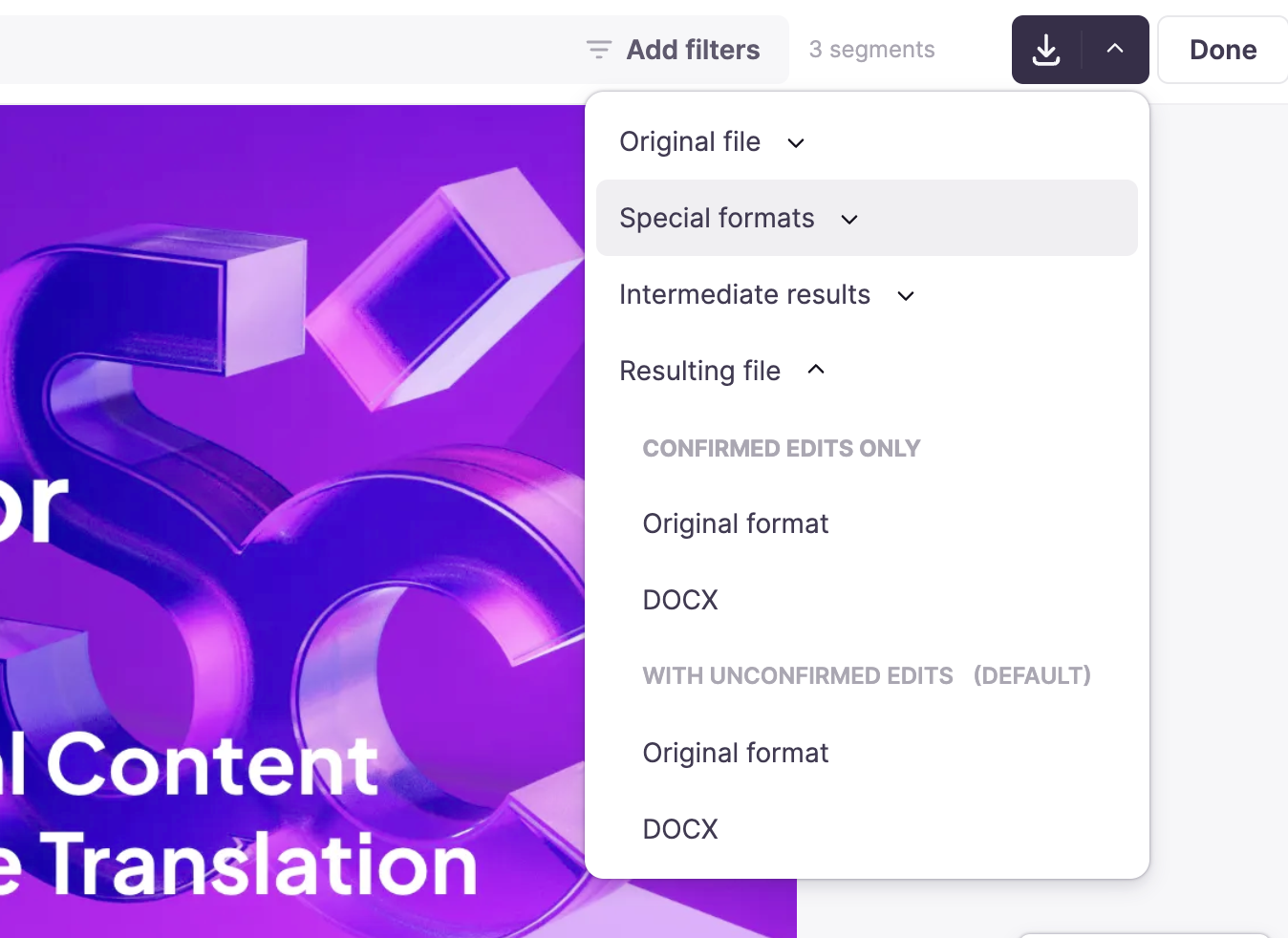
Download each image in the format you uploaded, or as a DOCX file for image to text translation. Choose confirmed edits only or include edits still waiting for approval.
With AI image translation in Smartcat, a team can translate batches of images into every language, keep terminology identical and have reviewers approve each language, in the same Smartcat workspace it uses for documents.
Smartcat translates the text in image files, scans, screenshots and marketing graphics, in every script its editor supports. Here is what to expect for each kind of image, and where the limits are.
Smartcat translates PNG, JPG, JPEG, JFIF, BMP, TIFF, GIF, PCX, DCX, JP2 and JPC files and returns each one in the format you uploaded.
Scanned documents translate like images: Smartcat’s OCR also reads DJVU, JB2 and image-only PDF files, so a scanned contract or manual comes back translated. Clear, high-resolution scans give the best results. For a quick phone snap of a sign or menu, use the photo translator.
Animated GIFs are translated from the first frame only. To translate the other frames, export each one as a separate image and upload them together, so every frame comes back in every language.
Static GIFs translate like any other image.
Software screenshots translate like any other image, so help articles and release notes can show the interface in the reader’s language. Add your UI terms to a glossary and button labels read the same in every screenshot.
Infographics, banners and product images are metered per image, not per word. A dense infographic and a three-word banner cost the same, so text-heavy graphics are where the image translator saves most retyping.
Smartwords per image, for each target language
Logos and brand names stay as designed with Hide. Select the logo text and click Hide: Smartcat removes the translation and keeps the original background, so the mark looks the same in every language.
Smartcat translates images into right-to-left languages, and the editor includes Noto Sans Arabic, Noto Sans Hebrew and Noto Nastaliq Urdu for the translated text.
Chinese, Japanese and Korean translations get fonts built for those scripts, so translated characters render cleanly instead of falling back to a missing glyph. Pick the font per text box in the editor.
Fonts for Devanagari, Bengali, Gurmukhi, Tamil, Telugu, Kannada and Malayalam, plus Ethiopic and Georgian, are in the editor’s list of 56 fonts.
German and French often run longer than English, so a translation can overflow its box. Reduce the font size or drag the box into place in the editor instead of reopening the design file.
Smartcat works as a batch image translator: select one or many images for bulk processing and choose every target language once. Each image comes back in each language, in the format you uploaded.
Images inside Word files translate with the document once the Rich Document Image Translation setting is on. In PowerPoint, images are a separate step: translate them here, then put them back in the deck.
Invite your own reviewers or hire linguists from Smartcat Marketplace. They work in the same editor, and approved translations go into your translation memory.
Smartcat’s AI coworkers each handle one step of translation, from the first draft to the final check. Your team approves every language before anything is published.
Chief of Staff
Tell your Chief of Staff what needs translating and into which languages, and it coordinates the coworkers that translate and check your content.
Content Translator Coworker
Translates your content into 280+ languages with your glossary and translation memory.
Content Update Coworker
Helps find what a source change affects and re-translates only the new or changed text in every language.
Reviewer Coworker
Pre-reviews every language for fluency, tone and terminology, so your reviewers approve a strong draft.
Quality Assurance Coworker
Checks translations for terminology, formatting and accuracy errors and gives them a quality score before you download.
Smartcat connects to Google Drive, Google Docs, Google Sheets, Figma and Microsoft Teams, so your team translates files where it already works. See all integrations
Google Drive
Translate the documents your team keeps in Google Drive.
Google Docs
Send documents from Google Docs and get them back in every language.
Google Sheets
Translate product copy and glossaries kept in spreadsheets.
Figma
Localize designs and catch text expansion before they ship.
Microsoft Teams
Translate files and share the results without leaving Microsoft Teams.
Huel cut ad design localization time in half, Wunderman Thompson raised project output by 30% with the same resources, and expondo raised productivity by 50%. Each figure comes from that company’s own case study.
50%
less ad localization time
Huel localizes about 80 ad assets a month and cut its yearly localization time from about 160–240 hours to 80–100 hours with Smartcat’s Figma integration.
30%
more translation output
Wunderman Thompson increased project output by 30% with the same resources.
50%
higher productivity
expondo raised productivity by 50% and cut outsourcing costs by 50%.

“We can reuse translations across sizes (square, rectangular) using the TM, so designers don’t rebuild every variant.”
Huel localizes its ads and creative in every shape and size through Smartcat’s Figma integration, with translation memory reused across each variant.
Huel case studyTeams ask what each image costs, whether designers still fix layouts, which formats fail and how terms stay exact. The short answers are below, limits included.
Each image uses a flat 1,000 Smartwords per target language, whatever the amount of text, so a dense infographic costs the same as a three-word banner. Ten images into three languages use 30,000 Smartwords. The free trial’s 15,000 Smartwords cover 15 image translations.
Invite them into Smartcat. Your reviewers check each language in the same Image Translation Editor, and their approved edits go into your translation memory. If a language has no reviewer, hire a linguist from Smartcat Marketplace for that project.
For reading one image, it does. Smartcat is for the files you publish: the image back in its own format, every language in one project, your glossary on every image and a reviewer before release.
Sometimes, when a translation runs long. Every text box stays editable, so a reviewer changes the font size or moves the box in the browser instead of reopening the design file for each language.
Here Smartcat has real limits. It doesn’t translate WebP, SVG or HEIC files, and it translates only the first frame of an animated GIF. Export those assets to PNG or JPG first, one image per GIF frame. Sharp, high-resolution sources give the best results.
Your glossary applies to every image and translation memory reuses approved translations, so a product name reads the same on every banner. Reviewers approve each language before download.
Yes. Images often show unreleased products, internal screens and customer data, and Smartcat protects them with certified security controls. Details are on the Smartcat security page.
SOC 2 Type II compliant
Smartcat is SOC 2 Type II compliant and isolates every workspace.
ISO 27001 certified
Smartcat is an ISO 27001 certified organization.
Role-based access controls
Set who can view, translate, review and download images by team, role or region on enterprise plans.
Never used to train public AI models
The images and text you translate are never used to train public AI models.
Encrypted in transit and at rest
Files are encrypted while they move and while they are stored.
Deletion on request
Content is deleted or returned within 30 days of a written request.
Guides from the Smartcat blog on translating images and screenshots, and on keeping terminology consistent in every language.
Last updated: 30 October 2026
Smartcat’s AI image translation is as accurate as two steps allow: reading the text and translating it. Across all content, 92% of words translated by Smartcat AI are accepted without a single human edit. In images, recognition adds a variable: sharp, high-resolution text reads cleanly, while stylised or tiny lettering needs a check. Your glossary and a reviewer in the editor close the gap.
The best image translator depends on the job. For reading one image on the spot, a free app is enough; for images you publish, Smartcat suits teams that need the translated files back. Compare tools on five points: whether you get the image file back, batch uploads, glossary support, editable text in the result and human review in the same place.
Yes. Smartcat offers a free trial rather than a free plan: 15 days and 15,000 Smartwords with full access to translation capabilities, and no credit card required. Each image uses 1,000 Smartwords per target language, so the trial covers 15 image translations, for example five images into three languages. After the trial, image translation needs a paid plan.
To translate text from images in Smartcat, create a project, upload one or more images and choose your target languages. Smartcat detects the text, translates it and places it back in the layout. Open the Image Translation Editor to adjust wording, fonts or position, then download each image in the format you uploaded. The same steps work for one image or a folder.
Yes. Smartcat works as an image language translator for any pair of its 280+ languages, so an image with Japanese, Arabic or Hebrew text translates into English the same way English translates out. If you are working with a single file rather than a set, the picture translator walks through that task step by step; for phone snaps, use the photo translator.
Smartcat translates PNG, JPG, JPEG, JFIF, BMP, TIF, TIFF, GIF, PCX, DCX, JP2 and JPC images, and its OCR also reads DJVU, JB2 and image-only PDFs. Animated GIFs are translated from the first frame only. WebP, SVG and HEIC files are not supported, so export them to PNG or JPG first. Each image downloads in the format you uploaded.
Yes. Smartcat lets you select one or many images and upload them to one project for bulk processing. Each image can be up to 30 MB, since larger files can fail text recognition. For very large sets, Smartcat’s help center recommends projects of up to about 1,000 files. See how to translate multiple images at once.
Smartcat meters image translation at a flat 1,000 Smartwords per image for each target language, whatever the amount of text, so a dense infographic and a short banner cost the same. Smartwords are Smartcat’s single usage unit, and plans include an allowance shared by unlimited users. See Smartcat pricing for plans.
Yes. In Smartcat’s Image Translation Editor, each detected text region is a text box you can reword, move with drag and drop or arrow keys, and restyle: font, size, colour, alignment, bold, italic and underline. Select text you want to keep as it is, such as a logo, and use Hide to remove the translation and keep the original background.
Smartcat’s Image Translation Editor offers 56 fonts, from Albert Sans and Inter to Roboto and Work Sans, including Noto families for Arabic, Hebrew, Urdu, Devanagari, Chinese, Japanese, Korean, Ethiopic, Georgian and South Indian scripts. Pick the closest match to your original typeface for each text box. The font list can change, so check it before you rely on a specific typeface.
Yes. Smartcat translates software screenshots like any other image, which makes it useful for help articles, release notes and training material. Add your UI terms to a glossary so button labels and feature names translate the same way in every screenshot. For a walkthrough, see how to translate screenshots with AI.
Smartcat’s text recognition works best on sharp, high-resolution images. Blurry or heavily compressed files lose characters, and handwriting is read with accuracy that tracks the input, so treat those results as drafts to check. For scans, see how to translate a scanned document; for PDFs with selectable text, use the PDF translator.
Yes, with one setup step. For Word files (DOC, DOCX, RTF, ODT), Smartcat translates the images inside the document when the Rich Document Image Translation setting is on, and Smartcat support enables it for your workspace. In PowerPoint, images are a separate step: translate them as images, at 1,000 Smartwords each, then put them back in the deck.
Yes. Unreleased product shots, internal screenshots and campaign artwork stay inside your Smartcat workspace, where role-based access on enterprise plans decides who can open, review or download each image. Smartcat holds SOC 2 Type II and ISO 27001, never uses your images or their text to train public AI models, and deletes or returns them within 30 days of a written request.
Smartcat is the better fit when you need the translated image files back: the same format and layout, a batch in one project, your glossary on every image and a reviewer in the same workspace. For reading one image right now, a free app such as Google Translate or Google Lens is faster, and ChatGPT can explain or draft the text of one image.
Didn’t find your answer? Talk to a specialist
Trademark notice. Smartcat is an independent platform and is not affiliated with, endorsed by, sponsored by, or otherwise associated with Google LLC or OpenAI. Google Translate and Google Lens are trademarks of Google LLC. ChatGPT is a trademark of OpenAI. All product names, logos, and trademarks referenced on this page are the property of their respective owners and are used for identification and comparison purposes only.
Upload your images, pick your languages and download files you can publish: same format, layout intact, every text box still editable. Book a demo to see it on your own images, or start a 15‑day free trial with 15,000 Smartwords, no credit card required.